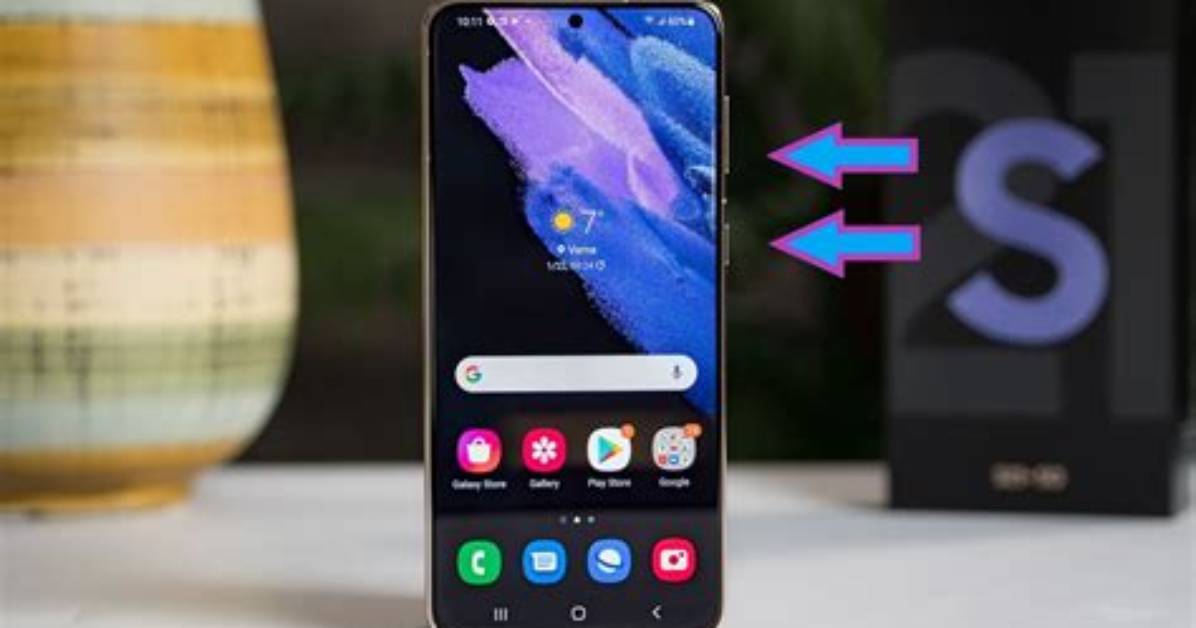
The screenshot is one of the most-used smartphone features. We use screenshots to share important data, memes, pictures, and a multitude of other activities.
Screenshots aren't limited to expensive flagships like the iPhone 13 Pro and Galaxy S22 Ultra. They're also readily available on more affordable phones — including Samsung's Galaxy A devices. Whether you have a Galaxy A53 5G, Galaxy A42, A13, etc., taking screenshots is a critical feature to know.
In case you’re new to the Galaxy A club and are having trouble taking screenshots, fret not, we’re here to help. Like all other Android smartphones, taking a snapshot on a Galaxy A device is easy. We will discuss a few different methods so you won’t ever get stuck while taking a screenshot on a Galaxy A series phone.
How to take a screenshot using button combinations
Let’s begin with the simplest of all. On any of the Samsung Galaxy A phones, you can take a screenshot by using the device keys. In order to make that happen, you need to follow these steps.
Step 1: Open the page you want to screenshot.
Step 2: Simultaneously press the Power + Volume down button until the screen flashes and you hear a click.
Step 3: You will find the captured screenshot in the Gallery or Photos app of your Galaxy A device.
How to take a screenshot using palm swipe
This method allows you to take a screenshot using a palm swipe gesture. It's not quite as convenient as the button combo, but it's another option at your disposal. Here's how it works.
Step 1: Open the Settings app on your Galaxy A phone.
Step 2: Scroll down the page and tap Advanced features.
Step 3: Tap on Motion and gestures and tap the toggle next to Palm swipe to capture.
Step 4: Set your hand on either side of the screen and swipe with your palm. The screen will flash once and you will see a notification saying your screenshot has been saved.

