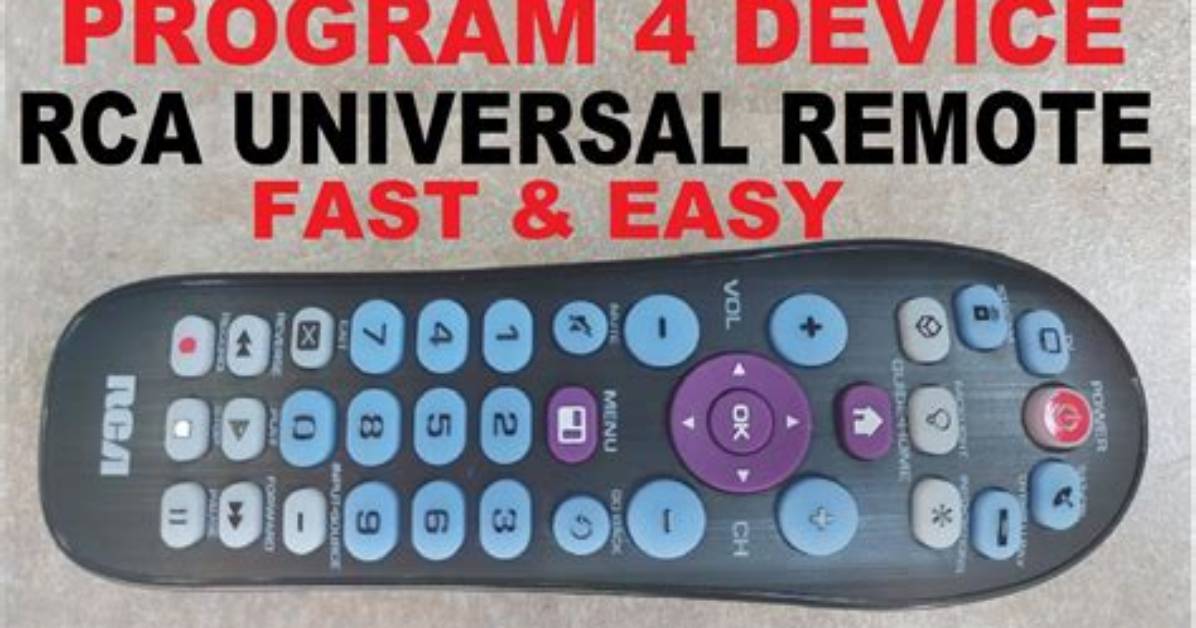
Keeping up with the bevy of remotes in your audiovisual stockpile is never an easy feat, especially when you need three of them (or more) just to be able to watch a show on Netflix or a Blu-ray movie. Fortunately, there's an inexpensive way to consolidate your remote control count (and/or replace a lost remote), with an RCA universal remote. The company makes several universal remotes that you can program for use with TVs, DVD players, VCRs, cable boxes, and the latest streaming devices such as Apple TV and Roku.
RCA's universal remotes are simple to operate, reasonably priced, and a relative breeze to program. There are a couple of ways to set them up, depending on the remote you've bought. To help you through the programming process, we've put together this step-by-step guide.
Before you get started
The first thing you’re going to want to do is to make sure your universal remote has fresh batteries in it and that the components and devices you want to sync are properly hooked up. All set? Now it’s time to link your RCA universal remote control to the hardware. There’s more than one way to do that, and we’ve covered the easiest methods below.
The auto-program method
The easiest and fastest way to begin syncing your devices with your universal remote control is to with the auto program method.
Step 1: Turn on the component or device you want to set up, such as your TV, Blu-ray player, streaming device, etc. In this example, we’ll go with the TV.
Step 2: Press and release the TV button. The RCA universal remote’s On/Off button will light up and should remain lit.
Step 3: Now, simultaneously press and hold the TV button and the On/off button. The illuminated On/Off button will turn off. After a moment, however, it should turn back on.
Step 4: Release both buttons after the On/Off button relights. It should remain on.
Step 5: Now, press and release the Play button on your RCA remote. If the TV (or component that you are programming) does not turn off after five seconds, continue to hit the Play button every five seconds until the TV turns off. The remote is searching through possible codes for your TV.
Step 6: When the TV turns off, your remote has found the right code. Next, press and release the Reverse button. Wait to see if the TV turns back on, and press it every three seconds until it does.
Step 7: Press and release the Stop button once more to save the programming for the device in your remote’s memory.
Step 8: Repeat steps 1 through 7 for each additional device you wish to pair with your remote. Some RCA universal remotes can accommodate up to eight devices.
Be aware that you might cause issues with the syncing mechanism if you press incorrect buttons. There’s certainly a learning curve that involves some trial and error to set up your remote successfully. If you come to a point where you need to start over, all you’ll need to do is restart the hardware, take out the remote batteries, put them back in, and go through the steps once more.

